How to Split PDF Files Online for Free
Sometimes you receive a massive, hundred-page PDF document but only need to send a single chapter to a colleague. Or perhaps you need to extract an invoice page to send to accounting. Instead of emailing the huge document and asking them to "see page 42," you can simply split the PDF.
In this guide, you will learn how to easily cut, separate, and extract pages from any PDF document using our free online PDF Splitter.
Why Should You Split PDFs?
Working with oversized documents is highly inefficient. Here is why splitting your PDFs is a smart move:
- Save Bandwidth and Storage: Smaller files are faster to email, upload, and download.
- Improve Clarity: Sending only the relevant pages ensures the recipient doesn't get confused by hundreds of unrelated pages.
- Enhanced Privacy: If you have a document containing both public information and sensitive data, you can split and share only the public part.
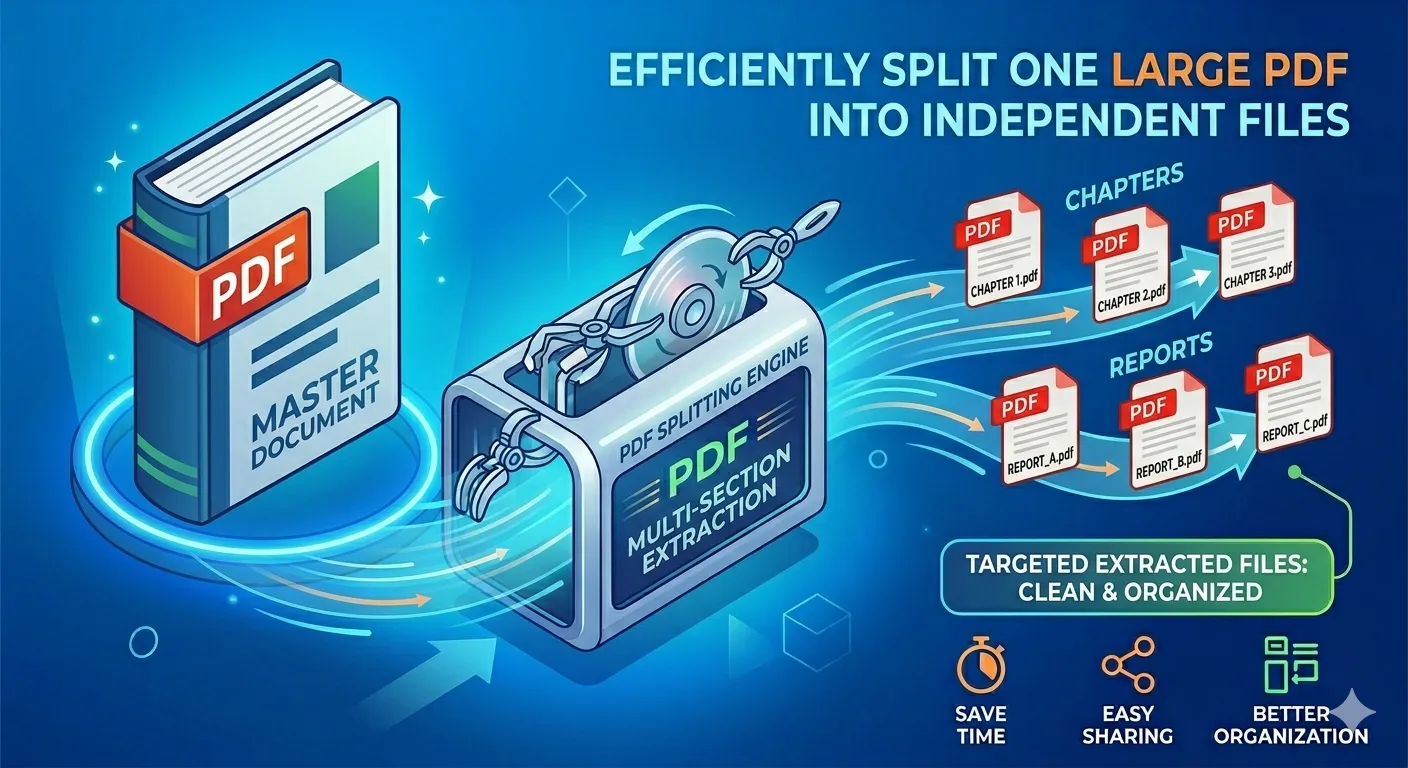
100% Client-Side: Total Privacy
Just like our other tools, the PDF Splitter works directly within your web browser. This means your documents are never uploaded to any remote server.
Whether you are splitting a confidential employee contract or personal financial records, your data stays strictly on your device. The process relies on your computer's processing power, guaranteeing absolute data privacy and instantaneous extraction.
Step-by-Step: How to Split a PDF
Separating your PDF pages is incredibly intuitive. Follow these quick steps to get exactly the pages you need:
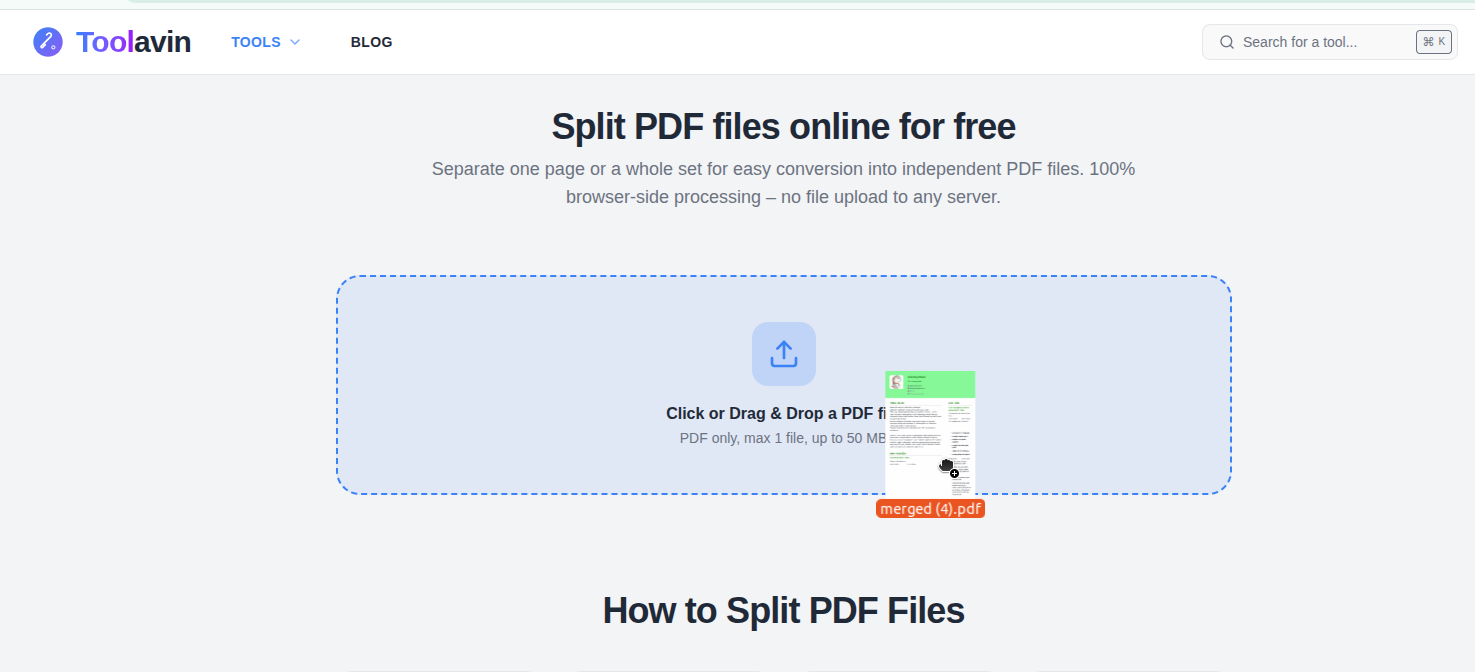
1. Upload Your Document
Head over to the PDF Splitter. You can browse for your file or just drag and drop the PDF you want to split right into the dropzone. You can even mix PDFs and image files!
2. Choose Where to Cut
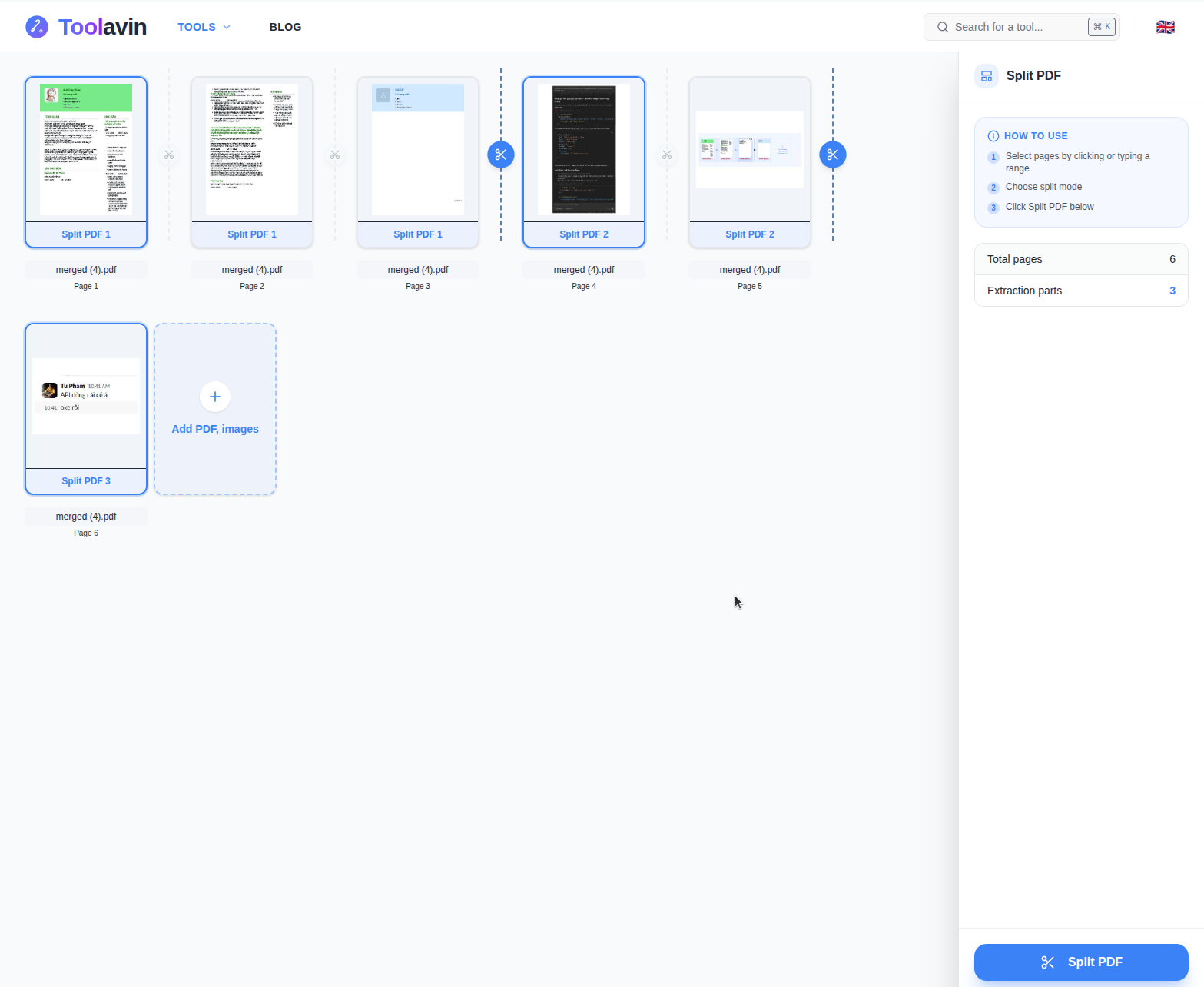
Once the file is loaded, all pages will be displayed in an interactive grid view.
- Split via Click: Hover between any two pages and click the scissors icon to create a split point. The dashed line will turn solid, indicating the document will be cut there.
- Rearrange: Just like our merger tool, you can drag and drop pages to change their order before splitting.
- Rotate and Duplicate: Hover over a specific page to rotate it or duplicate it if necessary.
3. Extract and Download
Once you have defined all your split points, click the Split File button.
The tool will instantly process your instructions and provide you with a master ZIP file containing all your newly separated PDFs, as well as options to download each extracted part individually.
Need to Recombine Them?
If you split the files, deleted a few unwanted pages, and now need to put them back together into a single file, you can easily use our PDF Merger. It works seamlessly with the pieces you just extracted.
Stop Struggling with Huge Documents
Why install heavy desktop software just to extract a few pages? Our browser-based PDF Splitter is lightweight, extremely secure, and 100% free. Start trimming your PDFs today!